How to use an iPad or a second iPhone as a teleprompter
Published October 1, 2026 · 6 min read
To use an iPad or a spare iPhone as a teleprompter, put it as close to the camera lens as you can and show the script full screen in large text. For true eye contact, place it under a beam-splitter glass rig and mirror the text so it reads correctly in the reflection.
This guide covers three setups — beside the camera, in a beam-splitter rig and as a presenter’s screen — plus the settings that matter for each: text size, mirroring, keeping the screen awake and controlling the scroll from a distance.
Why use a second device instead of the camera phone?
When you film with the iPhone’s front camera, the script can sit right under the lens on the same screen. But many setups don’t allow that: you film with the back camera for better quality, use a separate camera, or stream from one phone while needing the script on another. A second screen frees the camera to do its job and gives you a larger, easier-to-read script.
Setup 1: next to the camera
The simplest setup, and the one most livestreamers use.
- 1Mount the camera or phone at eye level.
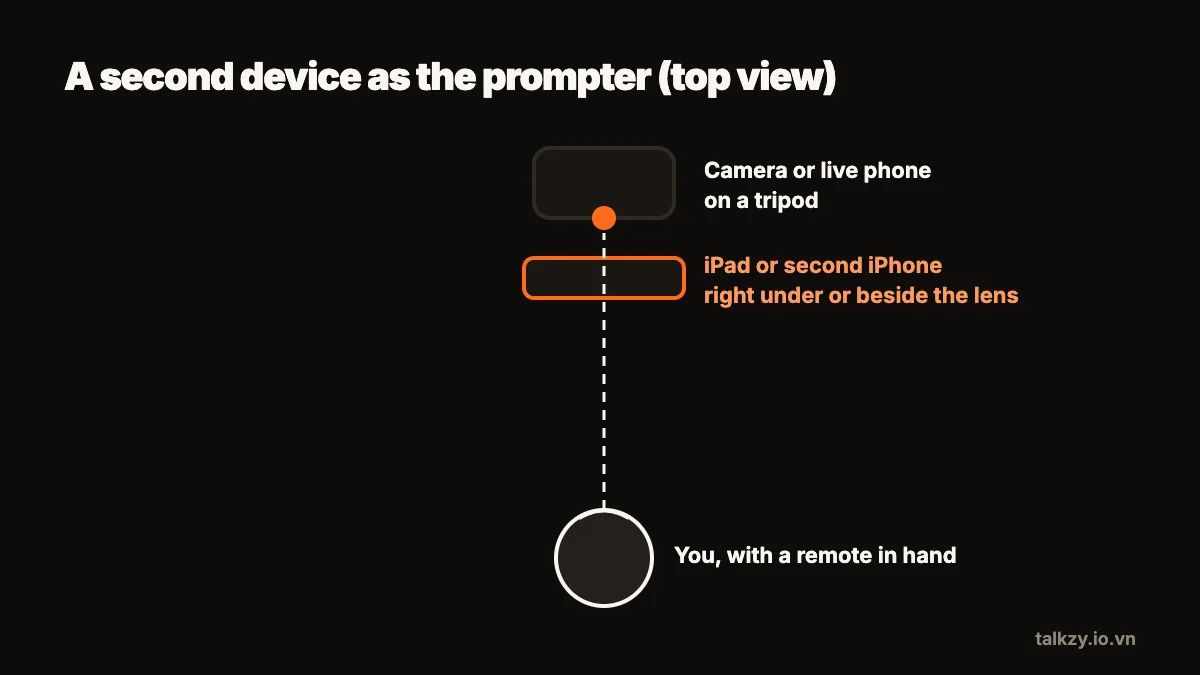
- 2Place the iPad directly below the lens, or as close beside it as possible. The smaller the gap between text and lens, the less your eye movement shows.
- 3Move the camera a little farther away than feels natural; at a distance, small eye movements are harder to see.
- 4Use a narrow text column near the edge closest to the lens.
This won’t give perfect eye contact, but at a normal filming distance it’s close enough for most talking videos and lives.
Setup 2: in a beam-splitter rig
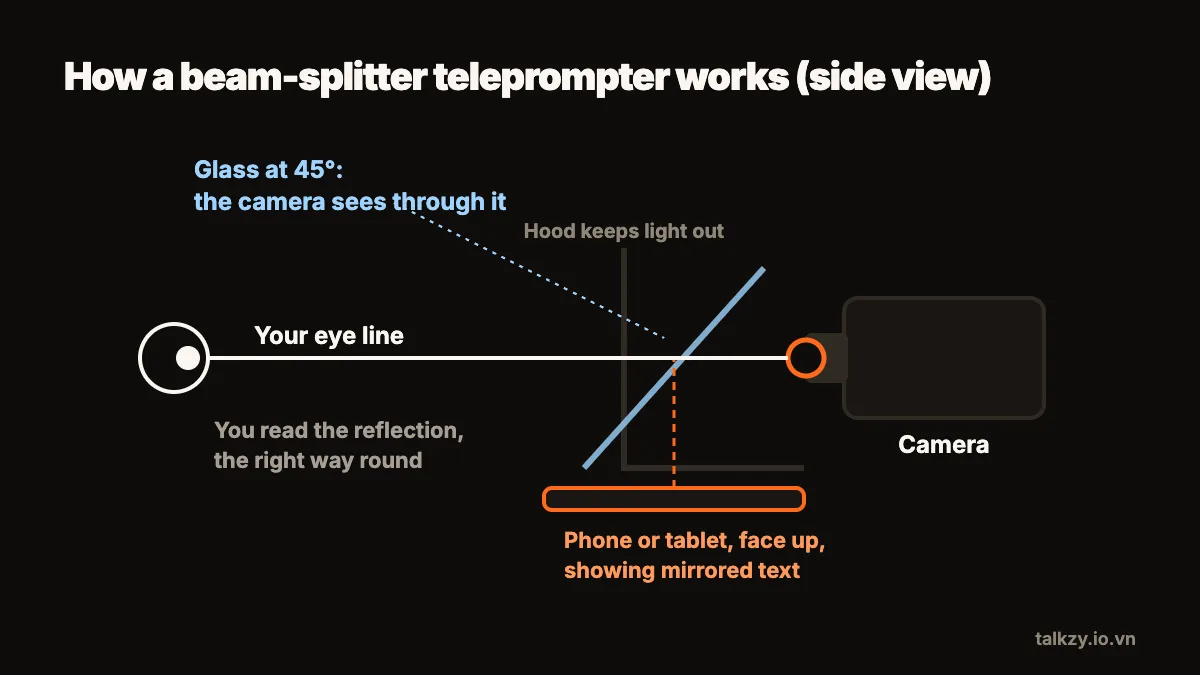
A beam-splitter teleprompter is a frame with a sheet of special glass at an angle in front of the lens. The iPad lies flat underneath, facing up; the glass reflects the screen toward you, while the camera films straight through the glass. You read directly over the lens, which gives true eye contact.
- 1Mount the camera behind the glass and frame your shot with the hood on.
- 2Lay the iPad screen-up in the rig’s tray.
- 3Turn on horizontal mirroring in your teleprompter, so the reflected text reads left to right. Some rigs, depending on how they fold, also need the text flipped upside down.
- 4Use a black background with white or yellow text: dark backgrounds reflect less and keep the image through the glass clean.
- 5Turn brightness up. The glass reflects only part of the light, so the text needs to be bright to be read comfortably.
Setup 3: as a presenter’s screen
For a talk, a lecture or a video call, an iPad on a stand in front of you works as a confidence monitor. Place it at eye level behind or just below the camera, use the largest comfortable text, and keep the column narrow so you read in short glances rather than long sweeps.
Which settings matter on the prompter device?
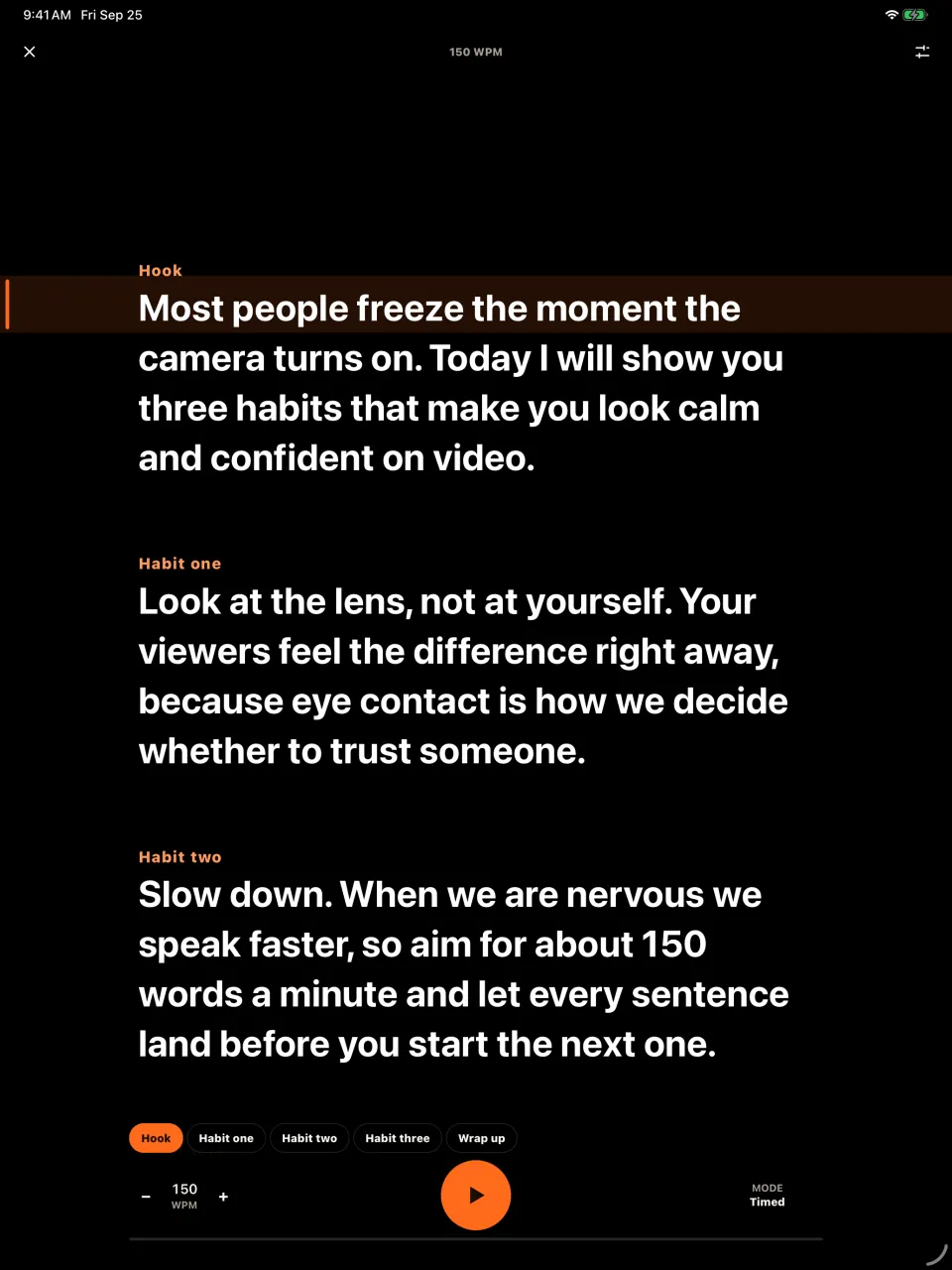
- Text size: much larger than for reading in your hand. If you squint, it’s too small.
- Margins: narrow the column so your eyes travel less.
- Keep the screen awake: auto-lock in the middle of a take is common. Turn it off in Settings › Display & Brightness › Auto-Lock for the session, or use an app that keeps the screen on.
- Do Not Disturb: so banners don’t appear over the script.
- Power: plug the device in for anything longer than a few minutes.
How do I control the scroll from a distance?
When the prompter is a metre away or inside a rig, touching it isn’t practical. Pair a Bluetooth keyboard, page-turner or ring remote with the iPad, ask a helper to drive it, or use a prompter that follows your voice. Whatever you choose, test it before the real take: a remote that sleeps after a few idle minutes is a common surprise.
Where Talkzy helps
Talkzy runs on iPhone and iPad and has a prompter-only mode for exactly these setups: full-screen text with no camera, mirroring left–right and upside down, a black background with very large white or yellow text, and the screen kept awake. Bluetooth keyboards, page-turners and ring remotes work with it, and mirror and remotes are free.
If you film with the iPhone’s front camera instead, Talkzy puts the script in a narrow column right under the lens and records each take as its own clip.