Webcam on an external monitor: where to put your script so you still look at the camera (Mac)
Published November 1, 2026 · 6 min read
If your webcam is clipped to an external monitor, put your script on that same monitor, in a narrow window at the top centre just under the camera, and keep the call or recording window next to it. Notes on the other screen, such as your MacBook beside the monitor, make you look sideways or down, and viewers see it.
This guide shows where to put the camera, the call window and the script on a Mac with two screens, and how to tell Talkzy for Mac which display to use. The placement advice works with any notes app.
Why does reading notes on the other screen look wrong?
A camera only sees where your face points. If the lens is on the external monitor and your notes are on the laptop beside it, your eyes and head turn toward the laptop, and the viewer sees someone glancing off to the side. The farther the notes are from the lens, the more obvious it is.
The fix is to make the camera, the call window and the script share one small area: the top centre of the screen the camera is attached to.
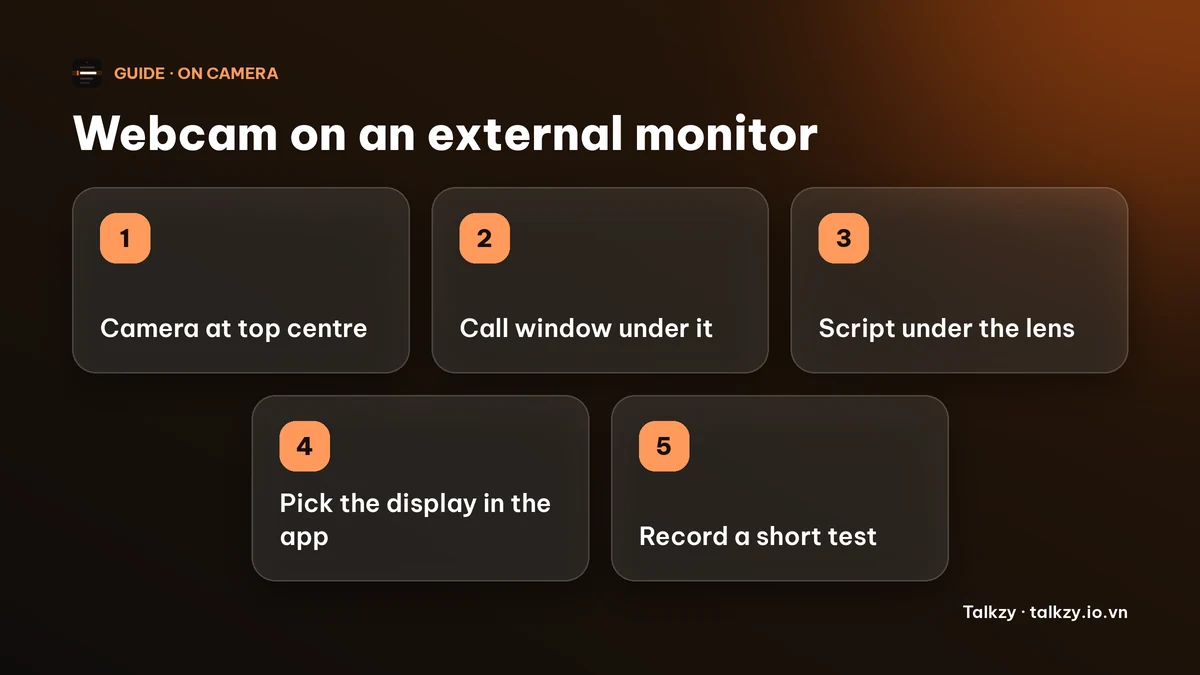
Where should the camera, the call and the script go?
- 1Clip the webcam to the top centre of the monitor, at about eye level. If it is lower than your eyes, raise the monitor on a stand or a stack of books.
- 2Make the call or recording window small and put it near the top of that same monitor, just under the camera, so the faces you look at are close to the lens.
- 3Put the script in a narrow window at the top centre too, two to three lines tall, in large text. If both the call and the script are there, put the script directly under the lens and the call window slightly to one side.
- 4Use your laptop screen for things you do not need to look at while you speak, such as chat or a timer you check between points.
- 5Record a 10-second test and watch it with the sound off. If your eyes visibly drift, move the script closer to the lens.
| Placement | Eyes move | Looks like eye contact? |
|---|---|---|
| Narrow script window at the top centre of the camera’s monitor | Very little | Yes |
| Script lower on the same monitor | Noticeably down | No, it reads as looking down |
| Script on the laptop beside the monitor | Sideways and down | No |
| Script on a phone or tablet on your desk | A lot | No |
What if my Mac’s lid is closed or the camera is the MacBook’s?
Closing the lid covers the built-in camera, so with the lid shut you need the external webcam anyway. If you keep the lid open and use the MacBook’s own camera while a monitor stands next to it, the camera and the call window are on the laptop, and the monitor is only a place for things you do not look at while speaking.
Whichever camera you use, the rule is the same: the script goes on the display that holds the camera you are talking to.
How do I tell Talkzy for Mac which display to use?
Talkzy for Mac is a slim script bar that hangs from the MacBook’s notch, or sits top-centre on a display without one, and stays on top of other windows. It is on the Mac App Store for macOS 14 or later.
On the Automatic setting it opens on the Mac’s built-in display if that has a notch, and otherwise on the main display. If your webcam is on an external monitor, that may be the wrong screen, so choose it yourself:
- Open Settings, go to the Overlay tab and choose your monitor in Show on. The list shows every connected display, and the notched one is marked.
- On a display without a notch the bar sits top-centre under the menu bar, which is about where an external webcam usually is. You can drag it anywhere. Let go near its home and it snaps back, and a double-click returns it.
- Set the text size (14 to 36 pt), the width (360 to 900 pt) and the visible lines (2 to 6) so the script is readable from where you sit.
- A shortcut, ⌃⌥⌘H by default, hides the bar, and Settings has a check of what others would see in a screen share. Run it before you present.
The overlay, timed and manual scrolling and the shortcuts are free. Voice-follow is free for 3 sessions a day, and Pro removes the limit. The iPhone and iPad app is coming soon to the App Store.
Frequently asked questions
- Where should I put my notes if my webcam is on an external monitor?
- On that monitor, in a narrow window at the top centre just under the camera, two or three lines tall. Notes on a second screen beside it make you look sideways.
- Why do I look away from the camera when I use two monitors?
- Usually the notes or the other person’s video are on the screen that does not hold the camera, so your head turns toward it. Move the call and the notes onto the camera’s screen, close to the lens.
- Can I use my MacBook screen for notes with an external webcam?
- You can, but it is the least natural option because your eyes move sideways and down. Use the laptop screen for things you do not need to read while speaking, and keep the script under the webcam.
- How do I choose which screen Talkzy for Mac appears on?
- Open Settings, go to the Overlay tab and pick the display in Show on. The default, Automatic, uses the built-in notched display if there is one and otherwise the main display.