How to present a webinar from a script without sounding scripted
Published October 21, 2026 · 6 min read
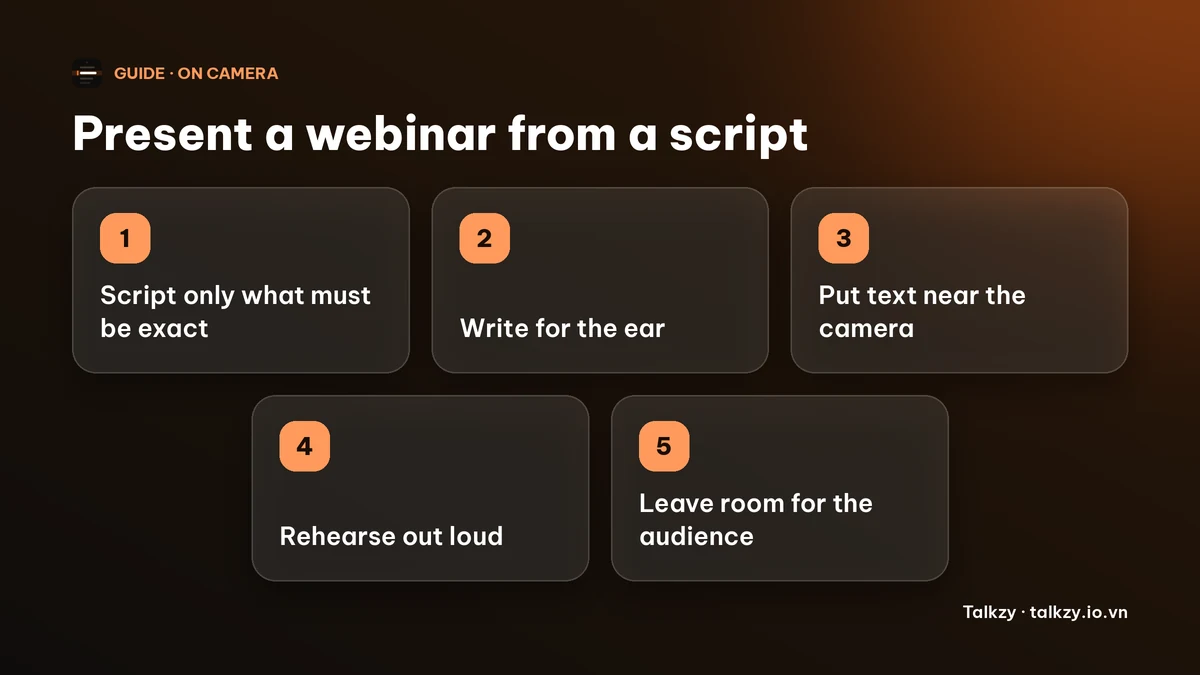
The way to present a webinar from a script without sounding scripted is not to script all of it. Write out word for word only the parts that must be exact, such as the opening, any numbers, the offer and the call to action, and speak the rest from short bullets. Write in short spoken sentences, keep the text close to your camera, rehearse out loud, and leave room for the audience so the session feels live.
None of this needs special software. The steps work with paper, a notes app or any teleprompter.
Why does a scripted webinar sound scripted?
A webinar is a live conversation with people you cannot see, so even small signs of reading are noticeable. Reading makes your pace even, your voice flat and your eyes drift away from the camera.
- Written sentences. Long sentences with clauses are made for the eye. Said out loud, they leave you out of breath.
- One speed. Reading at one steady pace removes the rises, falls and pauses of normal speech.
- Eyes on the slide. If you read from a window next to your slides, your gaze sits far from the camera.
- No room for the audience. A script has no gap for a poll result, a chat question or a joke.
Step 1: script only what must be exact
The more precise a moment has to be, the more of it you should write out. Everything else works better as bullets.
- Write word for word: the first thirty seconds, definitions, numbers, names, claims you must word carefully, the offer and the call to action.
- Use bullets for: stories, examples, explanations and transitions. Say them in your own words each time.
- Say the call to action out loud and more than once. Do not rely on a slide alone.
Step 2: write for the ear
Say each sentence out loud while you write it. If you run out of breath, split it.
- One idea per sentence, and short ones.
- Use contractions and the words you would use with a colleague.
- Start a new line for each thought. The gap is a cue to breathe and look up.
- Our guide on writing a script for a teleprompter goes into this in more detail.
Step 3: put the text near the camera, not next to the slides
The further your script is from the lens, the more your eyes seem to wander. On a laptop, put the text in a narrow window at the top centre of the screen, just under the webcam, two or three lines tall, in large type. Keep your slides on the rest of the screen and share a single window or tab rather than the whole screen, so your notes are not part of what the audience sees.
Our guide on eye contact on video calls shows how to place the window.
Step 4: rehearse out loud, with your slides
- 1Read the whole thing aloud once and mark where you stumble. Rewrite those lines.
- 2Run through it again with your slides, and time it. Plan to finish a little under your slot, because questions and pauses add time.
- 3Record one run and listen for a flat voice. Our guide on sounding monotone has drills for it.
- 4Practise the transitions between slides, because that is where people look down.
Step 5: leave room for the audience
Plan a gap for every interaction: a poll, a question in the chat, a pause after a key point. Mark those moments in your script so you do not read through them.
- Look at the camera when you ask a question, then at the chat when you read the answers.
- If you lose your place, finish the sentence you are in and carry on from the next bullet. The audience cannot see what you skipped.
- Keep a way to pause or jump to the next part without touching the mouse, such as a keyboard shortcut.
Where Talkzy helps
Talkzy for Mac is a script bar that hangs from the MacBook’s notch, or sits top-centre on a display without one, and stays above other windows without taking focus. It is on the Mac App Store for macOS 14 or later.
- In Settings you can show between 2 and 6 lines and set the text size from 14 to 36 pt.
- Start a line with # in your script to make a section, for example one per slide or topic, and jump between sections with shortcuts. By default ⌃⌥⌘← and ⌃⌥⌘→ move between sections, ⌃⌥⌘P plays or pauses, ⌃⌥⌘↑ goes back a line and ⌃⌥⌘H shows or hides the bar. You can change them in Settings.
- Speed is adjustable from 60 to 260 words per minute, and ⌃⌥⌘= and ⌃⌥⌘- change it while you present.
- Settings include a check of what others would see: it captures your display once, the way a screen share does, on this Mac only, and tells you whether the bar shows up. It needs the Screen Recording permission, and some meeting apps and recorders may still show it, so run the check before you present and use the hide shortcut while you share.
- The bar, the shortcuts and timed scrolling are free; voice-follow is free for 3 sessions a day, and Pro removes the limit. The on-bar section chips are a Pro feature, while the section shortcuts stay free.
The iPhone and iPad app is coming soon to the App Store.
Frequently asked questions
- Should I script a whole webinar?
- Usually not. Script the parts that must be exact, such as the opening, numbers, the offer and the call to action, and speak the rest from bullets. A fully written script is hard to deliver naturally unless you are very practised at reading aloud.
- How do I read a script on Zoom or another webinar tool without people noticing?
- Keep the text in a narrow window just under your webcam, in large type, and read in short phrases, looking up between them. Share a single window or tab rather than your whole screen so your notes are not visible.
- How long should a webinar script be?
- At a conversational pace of about 120 to 170 words per minute, a 30-minute talk is roughly 3,600 to 5,100 words if you script every word, which is rarely worth it. Script the key parts and plan to finish a little under your time.
- How do I stop sounding robotic when I present from notes?
- Write short spoken sentences, rehearse out loud, vary your pace and pause after important points. Our guide on sounding monotone covers drills that help.