How to read a script on camera with dyslexia: set up the text so it’s easier to follow
Published October 28, 2026 · 5 min read
If you have dyslexia, a block of small text scrolling on a screen can be hard to follow, and the pressure of a camera makes it worse. What usually helps is to change the text rather than to push through: short lines, a plain typeface, a larger size, generous space between lines and a pace you control.
People with dyslexia read differently from one another, so there is no single correct setting. This guide gives you a starting point to test, not a medical recommendation, and shows what Talkzy for Mac can and cannot adjust.
Why a scrolling script can be hard
On a teleprompter you read while the text moves, you cannot go back at your own pace, and you are speaking at the same time. For many readers with dyslexia that adds up: lines blur together, it is easy to jump to the wrong line, and similar-looking words are easy to swap.
- Long lines make it easy to lose the start of the next line.
- Dense paragraphs give your eyes no place to rest.
- Text that is too small or too tightly spaced is harder to separate into words.
- A pace set by someone else leaves no time to recover from a mistake.
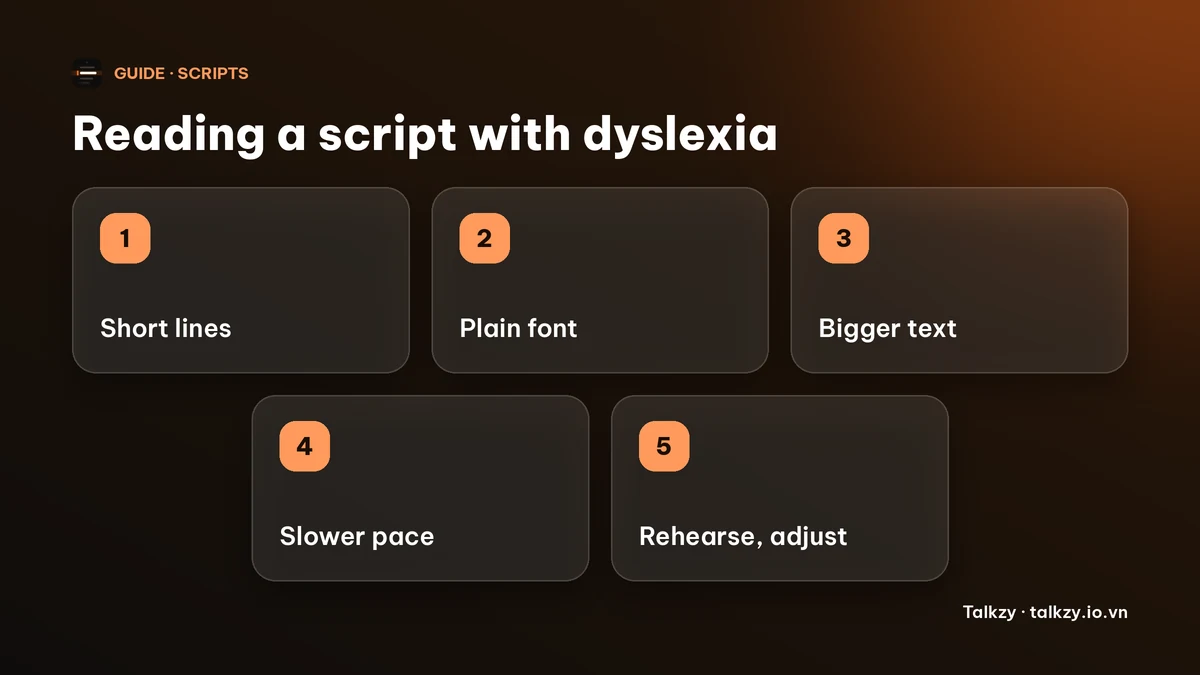
Step 1: break the script into short lines
Put one short phrase on each line, about 6 to 10 words, and leave a blank line between ideas. Where a line ends is where you can take a breath, so the layout also tells you where to pause.
Keep paragraphs to a couple of sentences. Spell numbers and names the way you would say them if a figure trips you up, for example “twenty twenty-six” instead of “2026”.
Step 2: choose a plain font, a large size and clear spacing
Advice from dyslexia organisations is fairly consistent: use a simple sans-serif typeface, avoid italics and long stretches of capitals, keep strong contrast between text and background, and leave plenty of space between lines. Research has not found one special “dyslexia font” that works for everyone, so choose by testing a few on your own screen.
Make the text bigger than you think you need and sit close enough to read it without leaning in. The guide on teleprompter font size and distance has numbers to start from.
Step 3: set a pace you can keep
Start slower than a typical speaking pace, around 110 to 130 words a minute, and raise it only when you read comfortably. A fixed pace you chose is easier than one that reacts to you, because you always know what will happen next.
Keep a way to pause and to go back a line without reaching for the mouse. Plan to record in short sections, so a wrong line costs a few seconds, not a whole take.
Step 4: rehearse out loud and adjust
Read the script aloud before you record, and change the line breaks wherever you hesitated. A phrase you stumbled on is usually a line that is too long or a word worth swapping. Do this with the real text size and distance, because a setup that works on paper may not work on the prompter.
Marking a stress or a pause in the script, such as a slash for a breath, is fine as long as you read it back once to check it does not become something extra to decode.
Setting up Talkzy for Mac
Talkzy for Mac is a script bar that hangs from the MacBook’s notch, or sits top-centre on a display without one, and stays above Zoom, Meet or your recorder. It is on the Mac App Store for macOS 14 or later. It does not have a font picker or a line-spacing setting, so the layout work is done in the script itself.
- In Settings, Overlay you can set the text size from 14 to 36 pt, the width from 360 to 900 pt, how many lines are visible (2 to 6), and the background opacity.
- The current line is highlighted, which can help you keep your place; you can turn that off in the same place.
- Timed mode scrolls at a fixed speed you set in words per minute, from 60 to 260, and it is free. Voice-follow, which moves the script as you speak, is labelled beta and is free for 3 sessions a day.
- By default the script stops moving while the pointer is over the bar, so you can rest the pointer there to pause. Global shortcuts for play and pause, and for going back a line, work while another app is in front. You can change them in Settings.
The iPhone and iPad app is coming soon to the App Store.
Frequently asked questions
- What is the best font for reading a script with dyslexia?
- There is no single best font. Organisations that publish guidance suggest a plain sans-serif typeface, no italics, strong contrast and generous spacing. Try two or three on your own screen and keep the one you can read most comfortably.
- Does Talkzy have a dyslexia font or mode?
- No. Talkzy for Mac uses its own system font and does not offer a font or line-spacing setting. You can change the text size, the width, the number of visible lines and the speed, and you format the script itself in short lines.
- What speed should I use if I have dyslexia?
- Start around 110 to 130 words a minute and raise it only if it feels too slow. Comfort matters more than a target number, and you can change the speed at any time.
- Is it better to use a fixed pace or voice-follow?
- It depends on you. A fixed pace is predictable, while voice-follow waits for you but is in beta and can lose its place. Try both on a short script and keep Timed mode as a backup.