How to not lose your place when you read a script on camera
Published October 20, 2026 · 5 min read
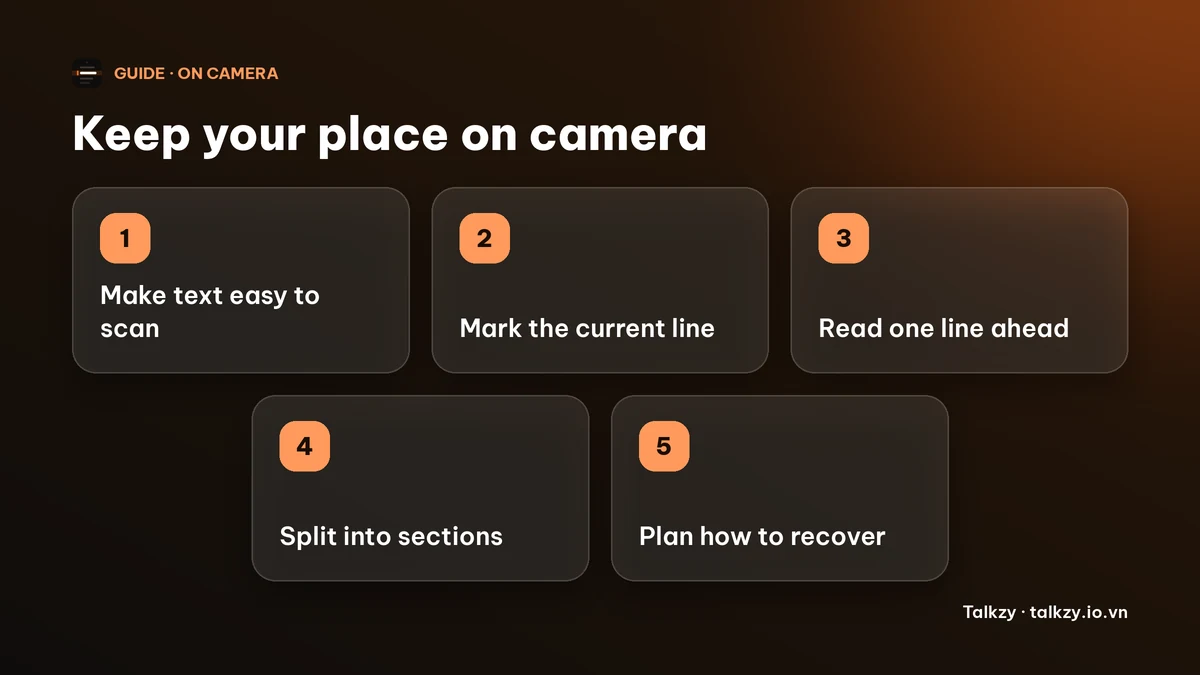
You lose your place when you read on camera because your eyes have to jump between the lens and the text, and a crowded page gives them nothing to land on. The fix is to make the place easy to find: large text with space between the lines, a clear marker on the line you are saying, a script cut into short lines and sections, and a habit of reading one line ahead. Then agree with yourself on what to do when you still lose it: stop, breathe and restart from the start of the sentence.
None of this needs special software. The steps work with paper, a notes app or any teleprompter.
Why do you lose your place when you read on camera?
When you read a page at your desk, your eyes only move along the text. On camera they also have to keep returning to the lens, so every glance up costs you the line you were on.
- Dense text. Small type, long lines and tight spacing make every line look alike, so you cannot tell where you were.
- Looking up. Each time you look at the lens, your eyes have to find the word again.
- Repeated phrases. If two sentences start the same way, your eyes can jump to the wrong one.
- Speed and nerves. Rushing makes your eyes skip lines, and panic makes a small slip feel like being completely lost.
Step 1: make the text easy to scan
- Make it bigger than you think. If you have to lean in, the text is too small. Our guide on teleprompter font size explains how to size it for your distance.
- Leave space between lines. A gap of about half a line makes each line stand apart.
- Keep lines short, a few words wide, so your eyes do not travel far sideways.
- Show only two to six lines at a time, so the page is not a wall of text.
Step 2: mark the line you are on
Your finger, a ruler or a highlighted line all do the same job: they give your eyes a fixed point to return to after looking at the lens. On paper, slide a finger or a card down the page. On screen, use a script that highlights the current line.
Step 3: read one line ahead
Your eyes should be a line ahead of your voice. Then, when you glance up, you are saying a line you have already read, and your eyes can come back to the next one without searching. Practice it on a few paragraphs, out loud, before you record.
Step 4: cut the script into short lines and sections
- Break the script into short lines, one thought per line, with a line break where you want to breathe.
- Group lines into sections of a few sentences, each starting with an easy anchor such as its first word, so you can find the start of a section quickly.
- Reword two sentences that start the same way, so your eyes cannot jump to the wrong one.
- Record section by section. If you get lost, you only redo the section. Our guide on recording in sections shows how.
Step 5: decide in advance what you do when you get lost
Everyone loses their place sometimes. What matters is not letting it turn into a long silence or a panicked rush.
- Stop talking. Take a breath and keep looking at the lens: a calm pause is easier to edit out than a flustered restart.
- Find the start of the sentence you were in and say it again, rather than trying to find the exact word.
- If you cannot find it in a couple of seconds, go back to the start of the section and begin there.
- Note where it happened. A spot that trips you twice is a spot to rewrite, as in our guide on stumbling over words.
Where Talkzy helps
Talkzy for Mac is a script bar that hangs from the MacBook’s notch, or sits top-centre on a display without one, and stays above other windows without taking focus. It is on the Mac App Store for macOS 14 or later.
- In Settings you can show between 2 and 6 lines, set the text size from 14 to 36 pt and turn on a highlight for the current line, which is on by default.
- Pause while the pointer is over the bar is on by default, so you can stop the script by resting the pointer on it.
- Global shortcuts work while another app is in front. By default ⌃⌥⌘P plays or pauses, ⌃⌥⌘↑ goes back a line, ⌃⌥⌘R restarts, and ⌃⌥⌘← and ⌃⌥⌘→ move between sections. You can change them in Settings.
- Start a line with # in your script to make a section, so you can jump back to its start.
- The bar, the shortcuts and timed scrolling are free; voice-follow is free for 3 sessions a day, and Pro removes the limit. The on-bar section chips are a Pro feature, while the section shortcuts stay free.
The iPhone and iPad app is coming soon to the App Store.
Frequently asked questions
- Why do I keep losing my place when I read a script on camera?
- Because your eyes have to leave the text every time you look at the lens, and a crowded page gives them nothing to find again. Larger text, space between lines, a marker on the current line and a script cut into short lines make your place easy to find.
- What should I do when I lose my place while recording?
- Stop, take a breath and look at the lens. Then restart from the beginning of the sentence, or the section, instead of searching for the exact word. Recording in short sections keeps a slip cheap.
- How do I read a script without looking down at it?
- Put the text as close under the camera lens as you can, keep it large, and read one line ahead of what you say so a glance at the lens never loses you. Our guide on reading without looking like you are reading covers it in more detail.
- Does a teleprompter stop you from losing your place?
- It helps, because the text is large, close to the lens and often highlights the current line. It does not fix a dense script, so cut your script into short lines first.