How to record a video in sections on iPhone (so one mistake doesn’t cost the whole take)
Published October 1, 2026 · 6 min read
To record a video in sections, split your script into parts of thirty seconds to a minute, record each part as a separate clip until you have one good take, then join the best take of each part in an editor. Keep the camera, light and your position unchanged between clips, so the joins look like deliberate cuts.
This guide covers how to split the script, how to name and track takes so you don’t lose the good one, how to keep the cuts smooth, and how to join the clips on an iPhone.
Why record in sections instead of one take?
In one long take, a stumble at minute four means starting again from the top, and by the fifth attempt you are tired and the energy drops. In sections, a mistake costs you one short part. You can also redo just the weak part later, change one paragraph without refilming the rest, and spend your freshest attempts on the opening that matters most.
Short sections are also easier to say well. You can hold thirty seconds in your head, and reading from a prompter, you can focus on one idea at a time.
How do I split the script into sections?
- 1Cut where the idea changes: the hook, each main point, the ending. Each section should make sense on its own.
- 2Aim for thirty seconds to a minute per section. Shorter is fine for the hook; longer sections bring back the one-long-take problem.
- 3Give each section a short label, like “Hook”, “Tip 1”, “Ending”. You will use the labels to name takes and find them later.
- 4Start each section with a full sentence that doesn’t depend on the last words of the previous one. “That’s why…” is hard to join; “The second habit is…” is easy.
How do I keep track of the takes?
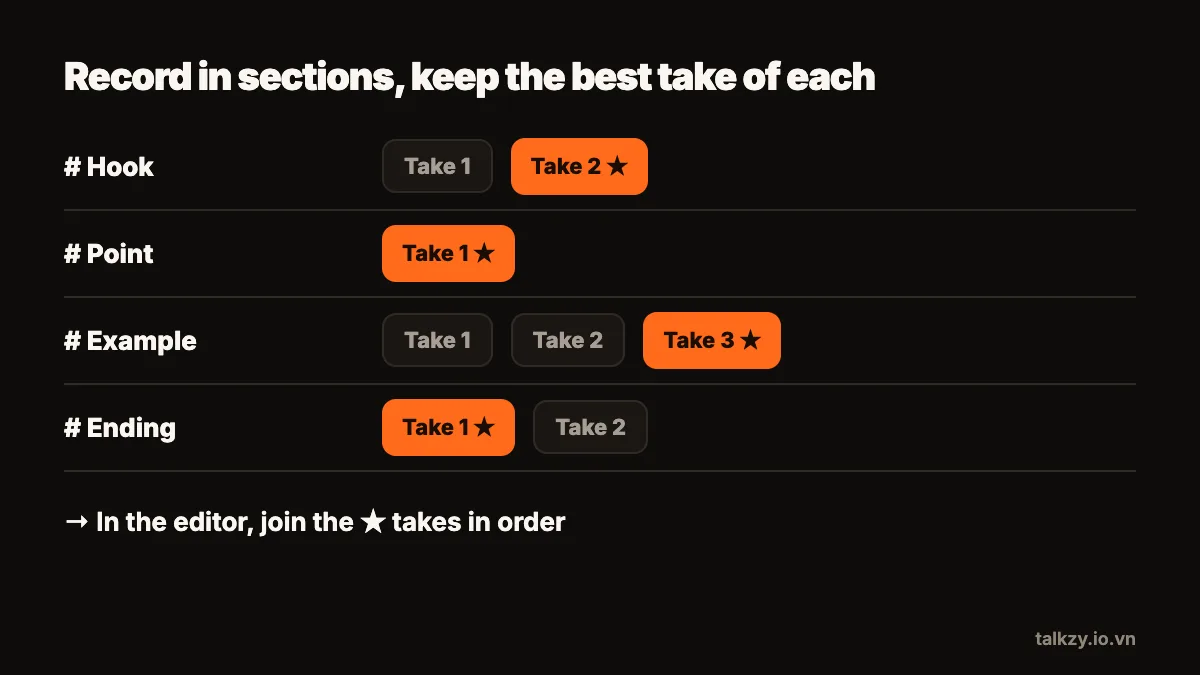
Takes pile up quickly, and the classic mistake is losing the good one among ten nearly identical clips. Decide how to mark the best take before you start:
- Say the section label and take number at the start of each clip (“Tip 2, take 3”), then pause before you begin. You can cut the slate later.
- Mark your favourite as soon as you record it, while you still remember why.
- Record sections in order the first time, then go back for retakes.
- Stop retaking a section once you have one good take. A perfect take is rarely worth five more attempts.
How do I make the cuts between sections look smooth?
- Don’t move the phone. A tripod or a fixed stand keeps the framing identical between clips.
- Lock focus and exposure. In the iPhone Camera app, touch and hold on your face until AE/AF Lock appears, so the brightness doesn’t jump between clips.
- Keep the light the same. Daylight from a window changes over an hour; a lamp doesn’t.
- Start and end each clip on a calm face, looking at the lens, with a second of silence. That gives you room to cut.
- If a join still jumps, it’s fine to use it. A visible cut between ideas is normal in talking videos. You can also cover it with a close-up or on-screen text.
How do I join the clips on an iPhone?
Any video editor that lets you place clips one after another on a timeline will do, including the editors that come with many social apps. The steps are the same everywhere:
- 1Create a new project with the aspect ratio you filmed in.
- 2Add the best take of each section in order.
- 3Trim the start and end of each clip to remove the slate and the silence, leaving a short beat before each sentence.
- 4Play the whole thing once without stopping. If one join feels abrupt, trim a little more or less there.
- 5Export, and keep the original clips until the video is published.
What if I need to change one section later?
This is where recording in sections pays off. Reset the phone, light and clothes as close as you can to the original session, record only the new section, and swap it into your edit. A photo of the setup and a note of your settings from the first session make this much easier.
Where Talkzy helps
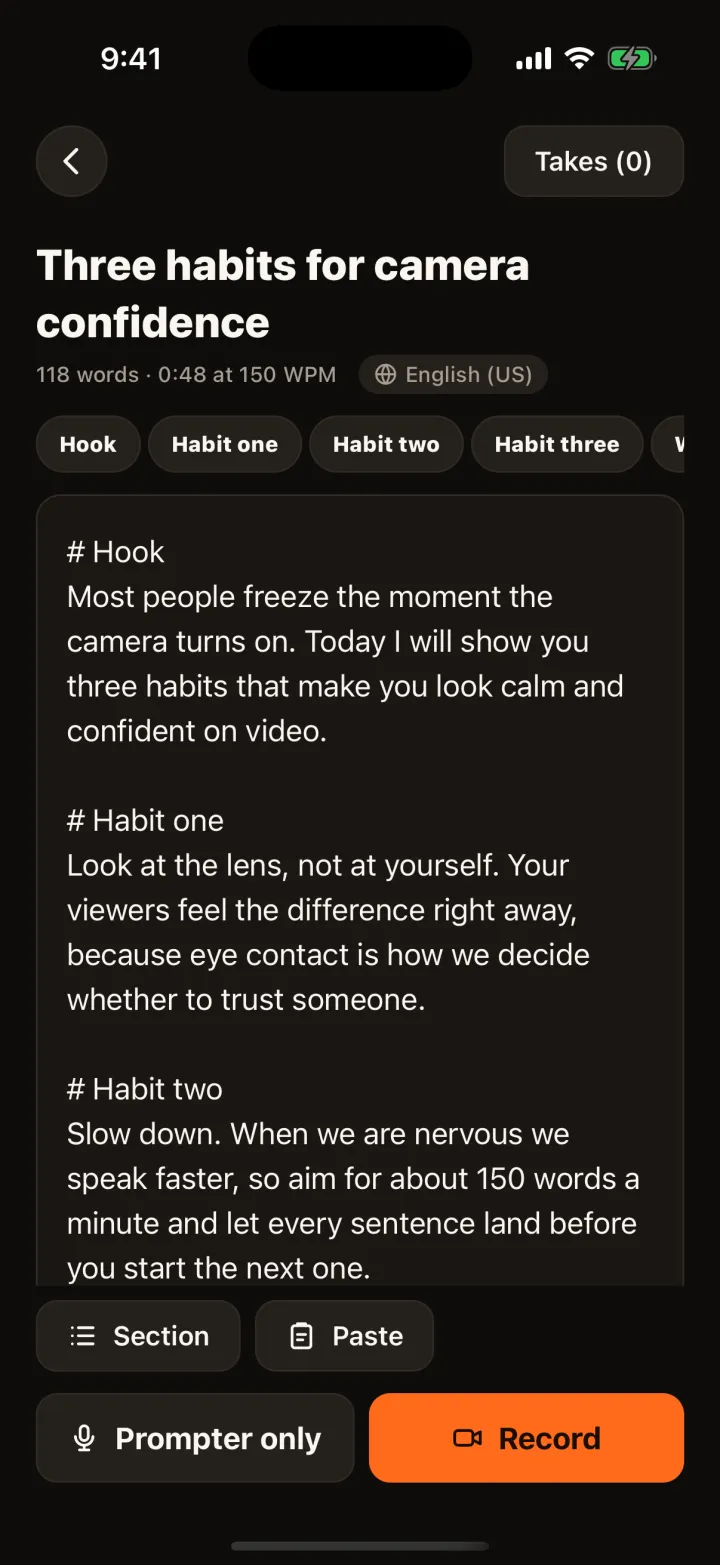
Talkzy is built around recording in sections. In the script editor, a line starting with # begins a section, and in the prompter you can jump between sections, for example with a page-turner or a keyboard. After a stumble you can retake from where you stopped or from the start of the section.
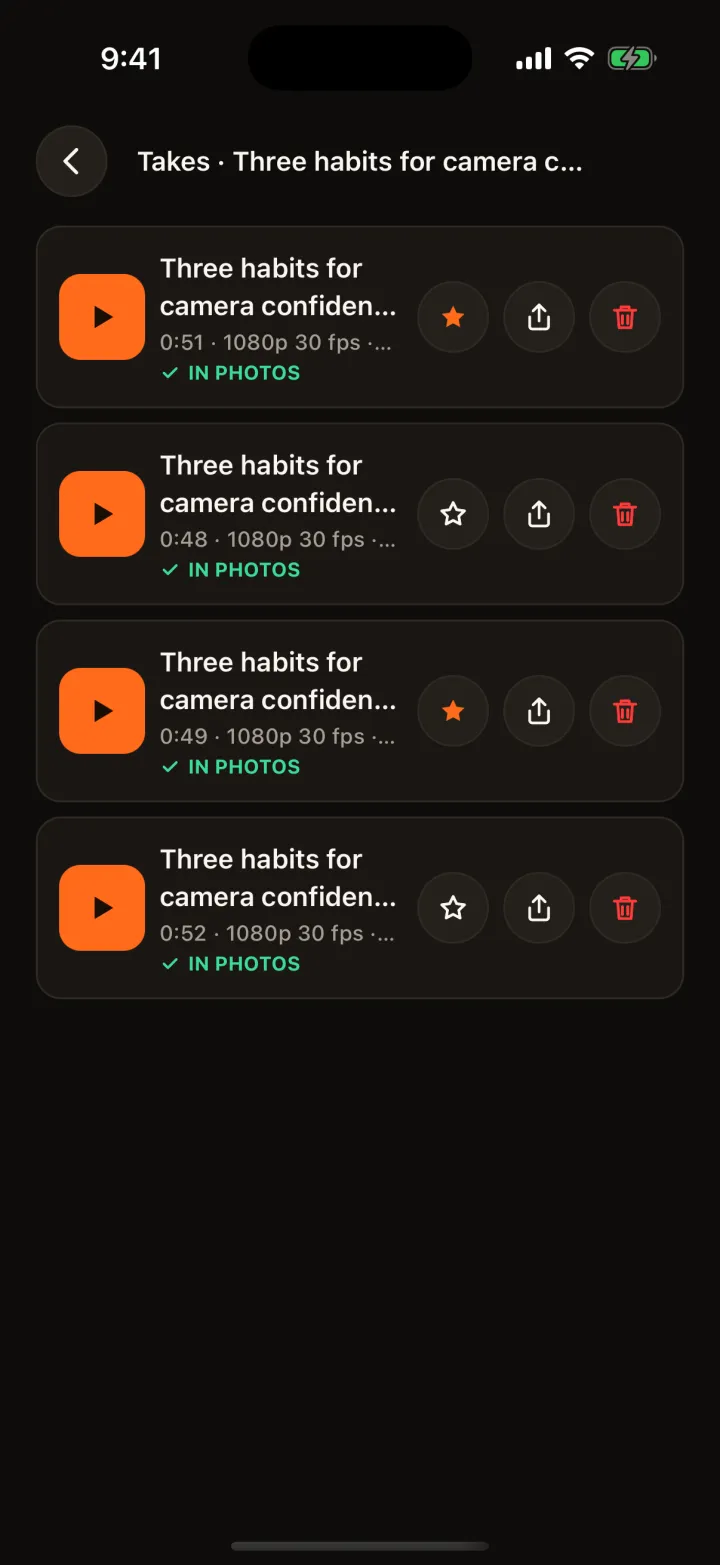
Each take is saved as its own clip named after your script, listed with a still and its length, and you can star the one to keep; you can also have takes saved to an album named after the script in Photos, ready for your editor. If Talkzy is closed mid-take, the take is recovered on the next launch, marked Recovered, with at most the last couple of seconds lost.