A teleprompter for teachers: recording video lessons on a phone or iPad
Published October 1, 2026 · 7 min read
To record a video lesson on a phone or iPad, plan it as short sections, put the device at eye level with light in front of you, and read each section from a teleprompter right under the camera, recording one section at a time. Students get eye contact and a lesson without rambling, and a mistake costs you one section instead of the whole recording.
This guide is for teachers and tutors making recorded lessons, flipped-classroom videos or course modules. The steps work with the device you already have; the last section covers what Talkzy adds.
Should a video lesson be scripted?
A lesson is not a speech, and many teachers explain best when they improvise. On video, though, there is no class to read: nobody looks confused, so nothing tells you to slow down or give another example. A script fixes the order, the definitions and the examples in advance, which keeps a ten-minute video to ten minutes.
You don’t have to script everything word for word. A good middle ground is to script the parts where wording matters (the learning goal, definitions, the instructions for the task) and keep bullet points for the explanations you know well.
How do I structure the lesson script?
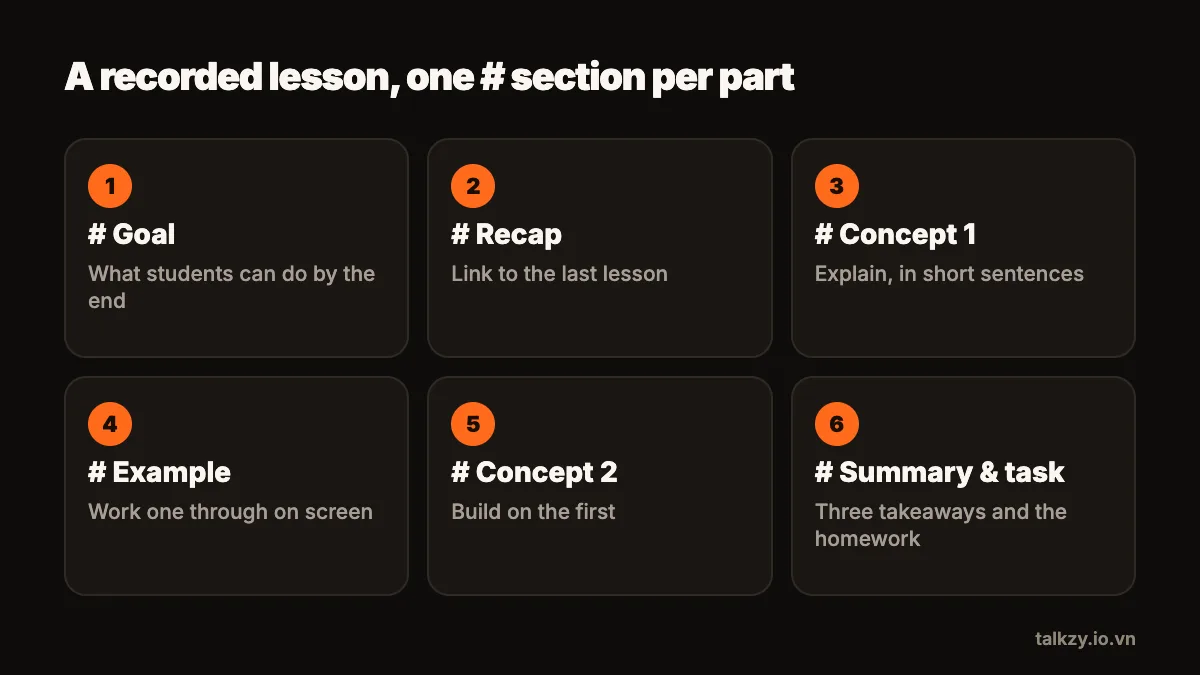
Split the lesson into sections of one to three minutes, each with a heading. A structure that works for most subjects:
- 1Goal: one or two sentences on what students will be able to do by the end.
- 2Recap: a quick link to the previous lesson.
- 3Concept one: the first idea, explained simply.
- 4Example: a worked example, problem or text extract.
- 5Concept two: the next idea, building on the first.
- 6Summary and task: the key points again, and exactly what students should do next.
Short sections make better videos, and they also let you reuse parts: a good recap or a clear explanation of a concept can appear in more than one lesson.
How do I set up the phone or iPad?
- 1Choose the orientation first. Landscape suits lessons watched on a laptop or a classroom screen; portrait suits short clips watched on phones.
- 2Put the device at eye level on a stand, a tripod or a stack of books, about an arm’s length or a little more from you.
- 3Face a window or a lamp, so the light falls on your face from the front, and keep the background calm: a bookshelf or a plain wall rather than a busy board.
- 4Get the microphone close. In a classroom with bare walls the built-in mic picks up a lot of echo; a wired clip-on mic helps more than any camera setting.
- 5Turn on Do Not Disturb, so a notification doesn’t interrupt a take.
If you need the board or a document in the shot, record those parts separately and edit them in between the parts where you talk to the camera.
How do I read the script without sounding like I’m reading?
Write the way you speak in class: short sentences, “you” and “we”, and the questions you would normally ask the room (“Why do you think that happens?”). Read the script aloud once before recording and change any sentence you stumble on.
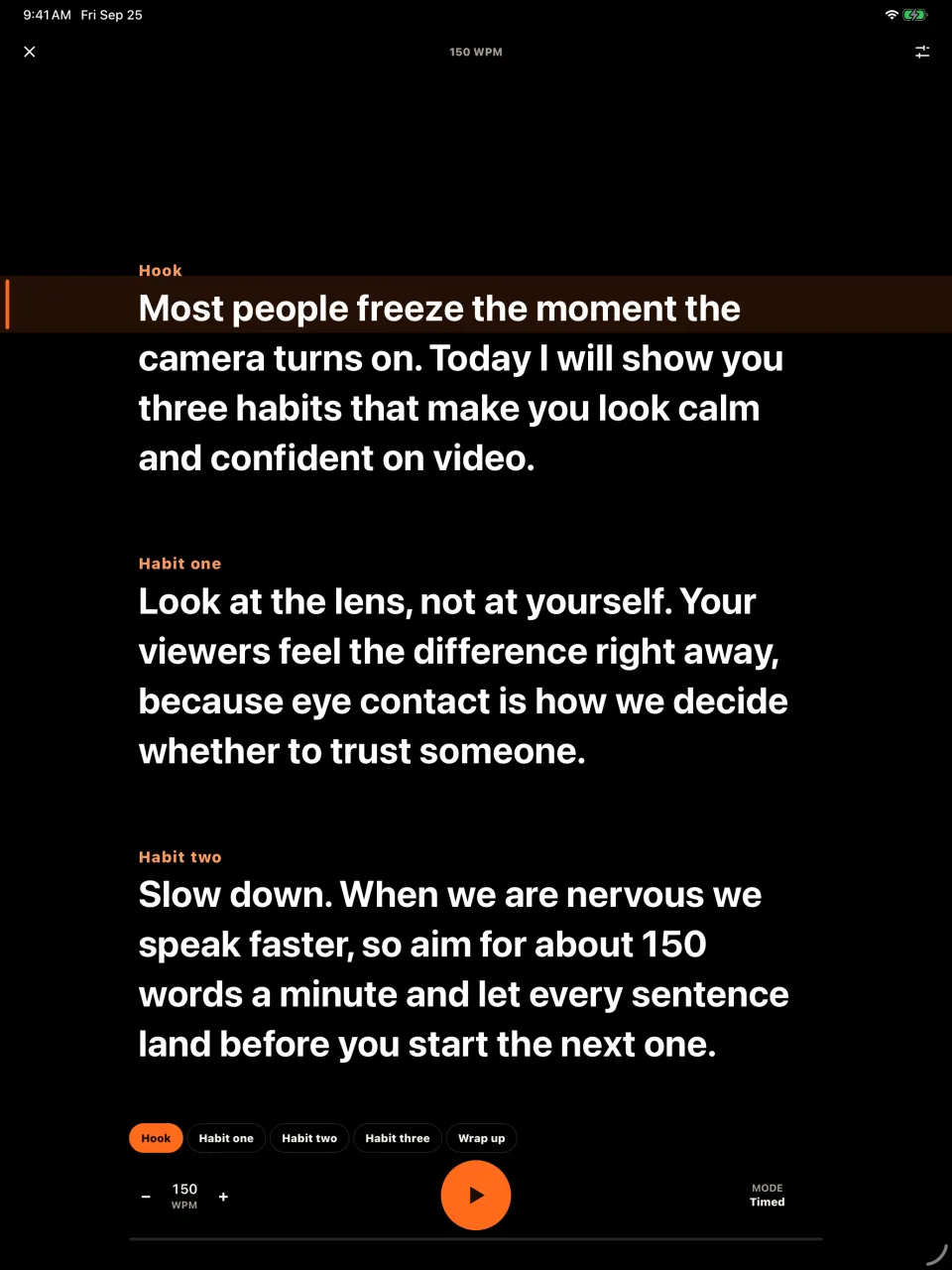
Keep the text close to the lens, in a narrow column, so your eyes barely move. Set the scrolling a little slower than your natural pace; teaching speed is usually slower than conversation, because students need time to follow. Pause after each key point; on video, a pause reads as emphasis, not as a lost thread.
Should I record the whole lesson in one take?
Usually not. Record section by section, leave a second of silence at the start and end of each take, and keep the best take of each part. If you stumble in the example, you retake the example, not the goal and the recap.
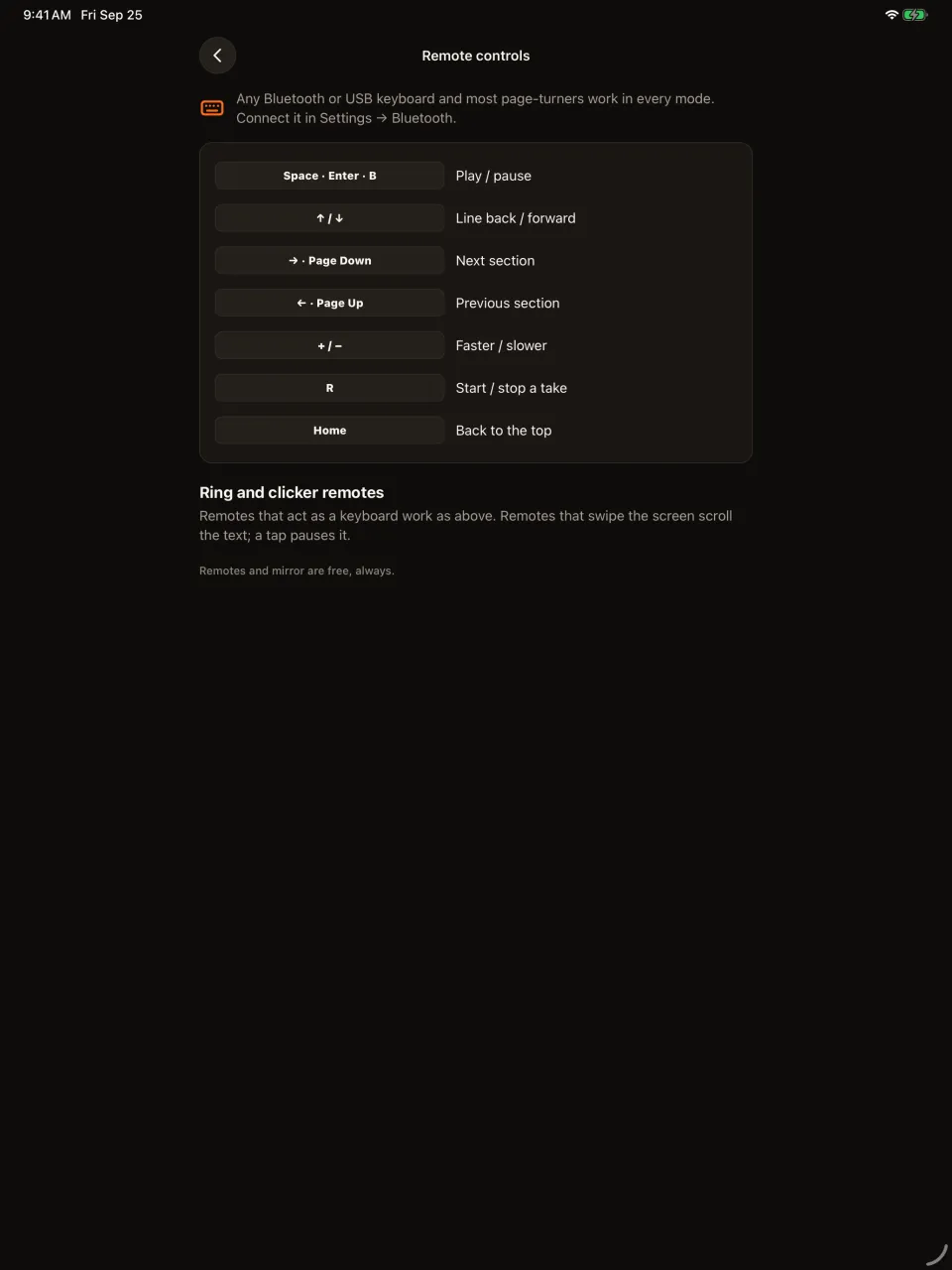
A remote helps a lot here. A Bluetooth page-turner, the same kind many teachers already use for slides, lets you start, pause and move between sections without walking back to the device, so your framing and lighting stay exactly the same between takes.
What about lessons with slides?
If students mainly watch the slides, a screen recording with your voice over it is often the better format, and your slide notes can hold the script. If your face matters, for an introduction, a summary or a short explainer, record those parts to camera with a teleprompter and combine them with the slides when you edit. Many teachers open and close a lesson on camera and teach the middle on slides.
Where Talkzy helps
Talkzy runs your lesson script in a narrow column right under the front camera of an iPhone or iPad. Start a line with # to make a section for each part of the lesson, and Talkzy shows the word count and an estimated read time at your speed, so you know how long the lesson will run before you record.
The script can follow your voice (beta) with Apple’s on-device speech recognition, so it waits when you pause to let a point land, or scroll at a speed you set in words per minute. A page-turner or keyboard can pause it and jump between sections, every take is saved as its own clip named after the script, and you can retake from the start of a section. Settings are remembered per script, so next week’s lesson opens the way you left it.