How to stop screen glare in your glasses on video calls and when you read a script on camera
Published October 23, 2026 · 6 min read
To stop your screen showing up in your glasses on camera, make the screen the dimmest bright thing in front of you: lower its brightness, keep the area near the camera dark, move your lights up and to the sides so their reflection misses the camera, and tilt the lenses slightly. Then record a short test, because every face, pair of glasses and room is different.
This matters most when you read a script, because a script on the screen sits right in front of your eyes. The advice works with any camera and any notes app.
Why does my screen reflect in my glasses?
Lenses are slightly mirror-like. Anything bright in front of you, usually the screen and any lamp or window behind the camera, bounces off the lens and straight into the camera, which sits in line with your eyes. A bright white document or a white call window is the worst offender, because it is a big, bright rectangle.
- The screen: a white page or a bright slide lights up your lenses with a clear rectangle.
- Your lights: a lamp placed right behind or beside the camera reflects as a bright dot.
- Windows: a window behind the camera shows up as a bright shape.
Step 1: turn the screen down
Lower the screen brightness as far as you can read comfortably. Many guides on glasses and video calls give the same first tip, because the reflection of the screen is usually the main problem.
Keep the area of the screen nearest the camera dark. Light text on a dark background shows much less in your lenses than a white page does.
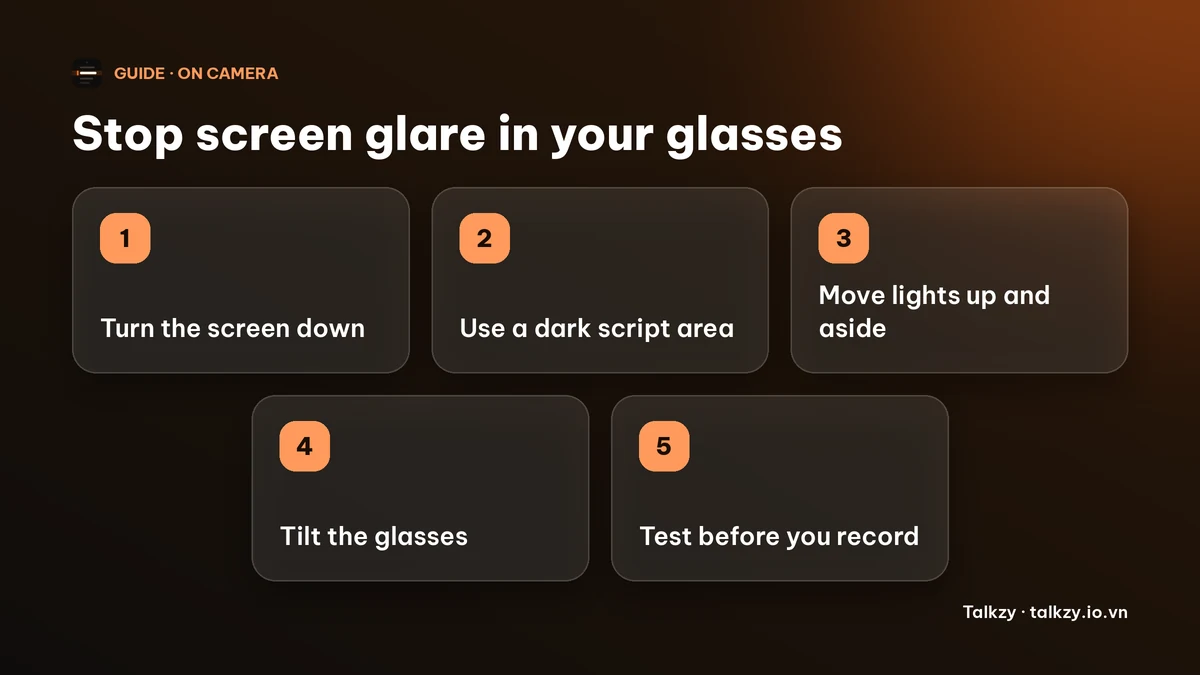
Step 2: put the script on a dark background
If you read from a script, use light text on a dark background and make the script area small and narrow. A narrow dark strip under the camera reflects far less than a full-screen white page.
Avoid reading from a white document or a white web page right under the camera. If you must use one, shrink the window and dim the screen.
Step 3: move your lights
Place lights higher than your eyes and to the sides, not directly behind the camera, so their reflection leaves the lens at an angle the camera does not see. A large, soft light usually reflects less harshly than a small bright one. Turn lamps and windows behind the camera away or cover them.
- Move the light up and out to the side, then watch your lenses on the preview.
- Turn off bright lights you do not need.
- Close curtains if a window behind the camera shows up.
Step 4: adjust the glasses
Small changes help. Clean the lenses, since smudges catch light. Tilt the frames a little so the lenses angle slightly downward, or raise the camera a bit so it looks down at you. If you buy new lenses, ask your optician about an anti-reflective coating; some people also find that lenses with a blue-light coating reflect more, so try regular glasses for an important call.
If none of this works, you can take the glasses off for the shot if you can read your script comfortably without them.
Step 5: record a 20-second test
Record a short clip with the same brightness, lights and window layout you will use, and watch it. Look at your lenses, not at your face. Change one thing at a time. Do a new test if you change the room, the screen or your seat.
Where Talkzy helps
Talkzy for Mac is a dark script bar that hangs from the MacBook’s notch, or sits top-centre on a display without one, so the area right under your camera is dark rather than a white page. It is on the Mac App Store for macOS 14 or later.
- In Settings you can choose how many lines to show (2 to 6), the text size (14 to 36 pt), the bar width and how opaque the dark background is (60 to 100 percent).
- You can read at a fixed speed (60 to 260 words per minute) or let it follow your voice. Speech recognition runs on the device.
The rest of your screen still matters: if a bright window sits below the bar, dim the screen or close it. The iPhone and iPad app is coming soon to the App Store.
Frequently asked questions
- Why can people see my screen in my glasses on Zoom?
- Because the lenses reflect whatever is bright in front of you, mainly your screen, and the camera sits right in that line. Lower the screen brightness, keep light areas away from the camera and test before the call.
- How do I remove glare from glasses on video calls?
- Dim the screen, move lights up and to the sides, tilt the glasses slightly, clean the lenses and check a short test recording. An anti-reflective coating on new lenses helps over the long term.
- Does a dark background help when I read from a script?
- Usually yes. Light text on a dark background reflects far less in your lenses than a bright white page, as long as the contrast stays high enough to read comfortably.
- Should I take my glasses off to record?
- Only if you can read your script comfortably without them. Otherwise fix the lights and screen brightness first, and keep the glasses on.