How to record a voiceover from a script without sounding like you’re reading
Published October 16, 2026 · 6 min read
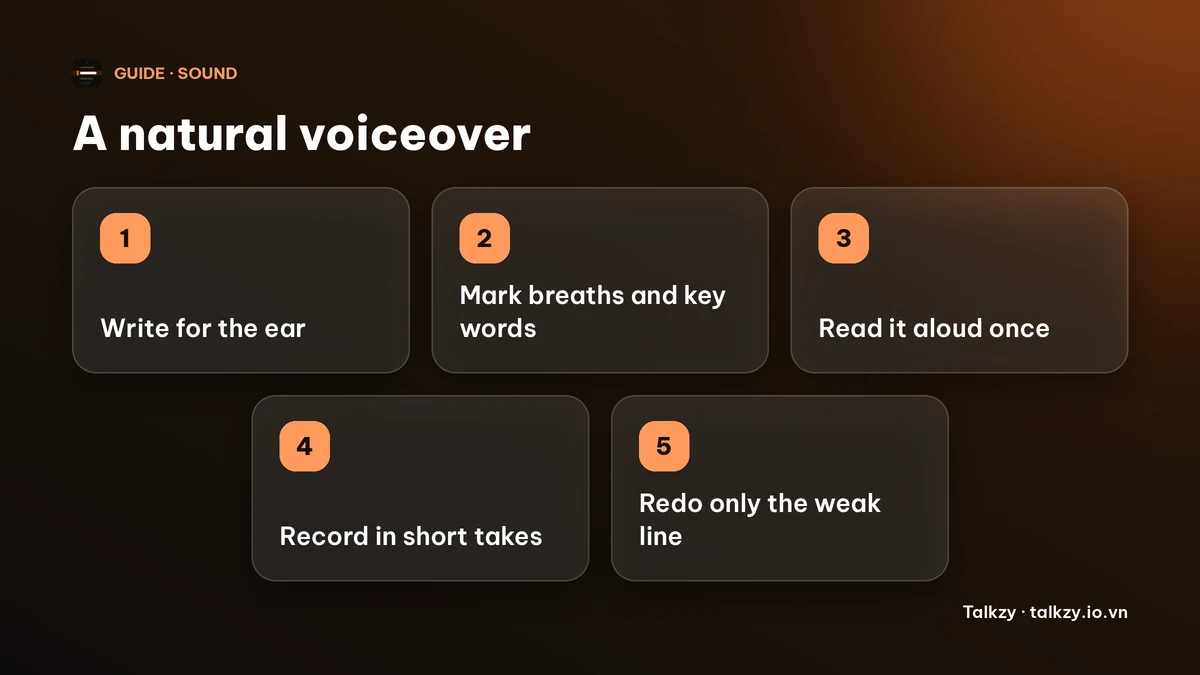
To sound natural reading a voiceover script, write it the way you speak, mark where you breathe and which words matter, read it aloud once or twice before recording, and record in short takes of a few sentences. Imagine you are explaining it to one person across the table, not reading to an audience. A natural voiceover is mostly a script written for the ear and a calm pace; a good microphone helps less than people expect.
This applies to narration over slides, a screen recording, a product video or a course lesson. The advice works with any recorder and any script, with or without a teleprompter app.
Why does a voiceover sound like reading?
Three things usually cause it. The text was written to be read on a page, so its sentences are long and formal. The voice goes flat because your eyes are busy finding the next word. And the pace is steady and rushed, with no pauses where a person would breathe or think.
A listener can’t see the page, so they hear all of this: the even rhythm, the missing emphasis, the sentence that ran out of breath. All three can be fixed before you press record.
How do I write a script that sounds spoken?
- Use short sentences and contractions: “it’s”, “you’ll”, “don’t”. Say each sentence out loud; if you run out of breath, split it.
- One idea per sentence, one point per paragraph. The listener can’t scroll back.
- Replace written words with spoken ones: “use” for “utilise”, “so” for “therefore”.
- Put the key word near the end of the sentence, where the voice naturally lands.
- Spell out what is hard to say: write numbers, dates and names the way you will pronounce them, and a hard name phonetically in brackets for yourself.
- Add a line break where you want a pause. Paragraph breaks are easy to see while you read.
Our guide on writing a script for a teleprompter goes further, including how long the script should be.
How do I mark a script before I record?
Print it or keep a copy you can mark, and do this once, quickly.
- A slash “/” where you will take a breath or pause briefly, and a double slash “//” for a longer pause.
- Underline the one or two words in each sentence you want to stress. Not more: stress everything and nothing stands out.
- Circle numbers and names you might trip over.
- Mark where the tone changes: a question, a warning, a good result.
You are not memorising. The marks only remind you of choices you have already made, so you can read with your attention on meaning.
How should I read it, and at what pace?
- Aim for roughly 130–150 words a minute for narration. Slower is fine for technical material; faster than about 170 starts to sound hurried.
- Read a few words ahead of what you are saying, so your voice never waits for your eyes.
- Smile slightly before the first line. It changes the sound of the voice, and it is free.
- Stand or sit upright. A slumped chest makes a smaller, flatter voice.
- Speak to one specific person, a colleague or a friend who knows nothing about the topic.
- Don’t chase perfect. A tiny breath or a slight stumble is human; a slight stumble that you fix in a clean second take is better still.
Our guide on stopping talking too fast has a way to set a pace you can keep.
How do I record it so the takes are easy to edit?
- 1Record in blocks of two to five sentences, not the whole script in one go. Your voice stays fresher, and a mistake costs ten seconds, not ten minutes.
- 2Say your take number or the first words out loud before each block. It makes the files easy to find in an editor.
- 3After a stumble, stop, count to two, and start the block again from its first sentence instead of patching the middle.
- 4Leave two seconds of silence at the start and end of every take for the editor.
- 5Record a few seconds of the room’s silence at the end. Editors can use it to remove noise or fill gaps.
- 6Listen back to the first block with headphones before you continue. Check the level, the distance to the mic and any room echo.
For the sound itself, a quiet room, a soft background such as a closet of clothes, and a microphone about a hand’s width from your mouth matter more than the price of the gear. Our guide on clear audio for phone video has the details.
Where Talkzy helps
Talkzy for Mac is a script bar that hangs from the MacBook’s notch, or sits top-centre on a display without one, and stays above other windows without taking focus. It is on the Mac App Store for macOS 14 or later. For a voiceover it works as a reading line next to the slides or the app you are narrating.
- The script scrolls on its own at a speed you set, by hand, or by following your voice (beta, recognised on the device). Hover the pointer over the bar to pause.
- Start a line with # to split the script into blocks, one per slide or per screen, which matches recording in short takes.
- Global shortcuts for play, pause and speed work while another app is in front.
- The bar, timed and manual scrolling and the shortcuts are free; voice-follow is free for 3 sessions a day, and Pro removes the limit.
The iPhone and iPad app is coming soon to the App Store.
Frequently asked questions
- How do I sound natural when I read a voiceover script?
- Write the script for the ear with short sentences and contractions, mark breaths and key words, read it aloud once before recording, and record in short blocks while speaking to one imagined listener.
- How fast should a voiceover be read?
- Around 130–150 words a minute suits most narration. Go slower for technical or unfamiliar material; much above 170 words a minute tends to sound rushed.
- Should I record the whole voiceover in one take?
- Usually no. Record two to five sentences at a time. You stay fresh, and when you make a mistake you redo a few seconds instead of the whole recording.
- Do I need an expensive microphone for a good voiceover?
- Not to start. A quiet room, soft surroundings that absorb echo and a microphone about a hand’s width from your mouth improve the sound more than an upgrade does.