How to read a script while screen recording on a Mac (without showing it in the video)
Published October 15, 2026 · 6 min read
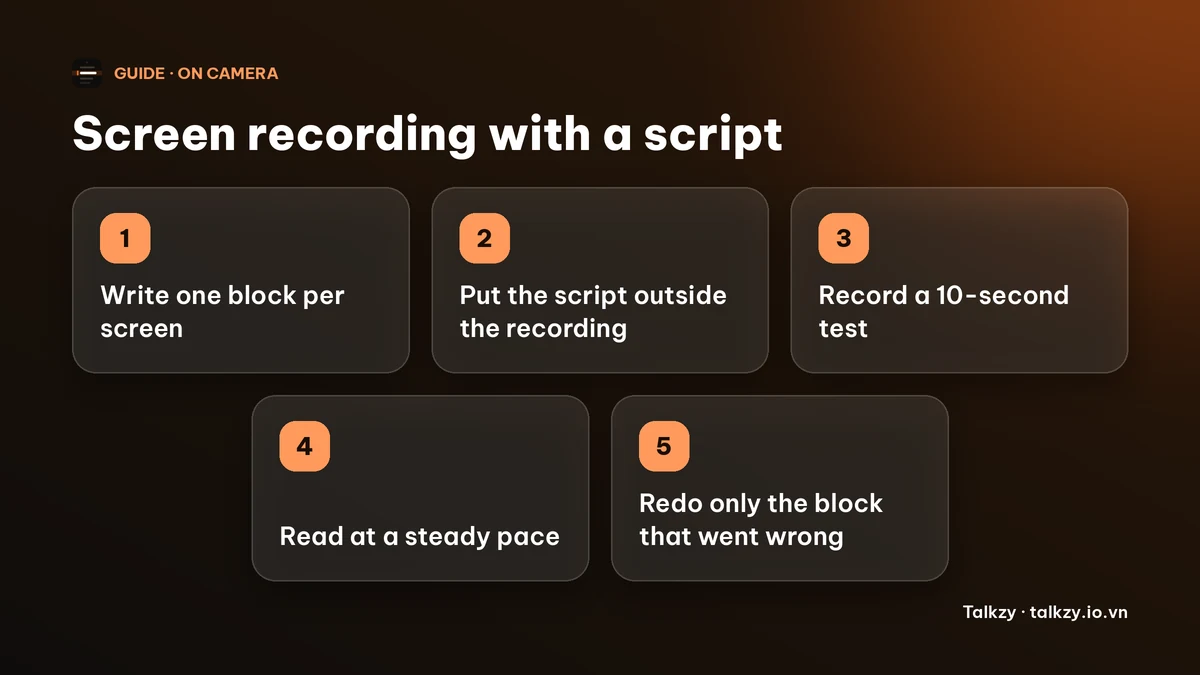
To read a script while screen recording on a Mac, put the script where the recording can’t see it: on a second display, on a phone or iPad propped beside the screen, or in a window that you have tested and confirmed does not appear in the recording. Then write the script for the ear, read it at a steady pace, and record a 10-second test first. If the script shows up in the test, move it before you record the real thing.
People who record tutorials, product demos and walkthroughs usually have two problems: the words come out stumbling when they talk and click at the same time, and any notes on the same screen end up in the video. This guide covers both, with the tools that already ship with macOS. It works whether or not you ever install a teleprompter app.
Why is it hard to talk and click at the same time?
You are doing three jobs at once: deciding what to say, operating the software and watching the screen. Each job takes attention, and the first one is the one that fails, which is why live narration is full of pauses, “um”, and sentences that never finish.
Reading from a script removes the first job. You no longer invent the words, so your attention goes to the cursor and the screen. The catch is that the script has to be somewhere you can see it without turning away from the thing you are demonstrating, and somewhere the recording does not capture.
How do I write a script that works for a screen recording?
- Split it by screen, not by topic. One short block for each thing you will show: “open Settings”, “turn on the option”, “here’s the result”.
- Write what you do and what the viewer should notice, in that order. “I’ll click Export. It takes a few seconds, and this is the file it makes.”
- Keep sentences short and use contractions, the way you would explain it to a colleague next to you.
- Leave a pause where the screen changes. A loading bar with no talk over it is fine; talking over a window that has not finished opening is not.
- Time it. At about 130–150 words a minute, a 3-minute tutorial is roughly 400–450 words. Our guide on script length has the numbers.
Where do I put the script so it isn’t in the recording?
A screen recording captures what is on the display, and a note window on that display is part of it. You have four ways to keep it out.
- A second display. Record only the first display, or only one window, and keep the script on the other screen. This is the most reliable setup.
- A phone or iPad beside the Mac. Put it on a stand right next to the screen so your eyes don’t travel far.
- Record a region. In the macOS screenshot toolbar (Shift-Command-5), choose “Record Selected Portion” and draw the box around the app only, so a script strip outside the box is not captured.
- A window that the recorder skips. Some apps ask macOS to leave their window out of screen captures. Whether it works depends on the recording app and the macOS version, so treat it as a bonus and never trust it without a test.
| Place | In the recording? | Eyes travel | Notes |
|---|---|---|---|
| Second display | No, if you record the other display | Some | Most reliable |
| Phone or iPad beside the Mac | No | Some | Needs a stand; you scroll by hand or use an app |
| Strip outside a selected region | No, if it is outside the box | A little | Shrinks what you can record |
| Window that opts out of capture | Depends on the recorder | Very little | Test it first, every time |
How do I record my screen and voice with what’s built into macOS?
- 1Press Shift-Command-5 to open the screenshot toolbar. In QuickTime Player you can instead choose File › New Screen Recording.
- 2Choose Record Entire Screen or Record Selected Portion.
- 3Open Options and choose the microphone you want. Without one, the recording has no voice.
- 4Do a 10-second test: say your first line, move the mouse, then stop and play it back. Check the sound level and look for anything on screen that you did not mean to show, including notifications.
- 5Record. To stop, click the stop button in the menu bar, or press Command-Control-Esc.
The exact menus can look slightly different between macOS versions, but the toolbar and the microphone option have been there for several releases.
How do I keep the pace steady and sound natural?
- Read a few words ahead of what you are saying, so your voice never waits for your eyes.
- Don’t rush to match your clicks. If an action takes a second, stay silent for a second.
- If you stumble, stop, count to two, and repeat the sentence from its start. Splitting the recording by block makes this cheap: you only redo that block and join them in an editor.
- Do not read in a flat voice. Say the first word of each block a little higher and finish it a little lower, the way you would when pointing at something.
Our guide on stopping talking too fast has a method for setting a pace you can keep.
Where Talkzy helps
Talkzy for Mac is a script bar that hangs from the MacBook’s notch, or sits top-centre on a display without one, and stays above other windows without taking focus. It is on the Mac App Store for macOS 14 or later.
- The script scrolls on its own at a speed you set, by hand, or by following your voice (beta, recognised on the device). Hover the pointer over it to pause.
- “Hidden from screen sharing” is on by default and uses the macOS window privacy setting. Some recorders do not respect it, so use “What do others see?” in Settings to check the result before you rely on it.
- A shortcut hides the bar completely, and global shortcuts for play, pause and speed work while another app is in front.
- Start a line with # to split a script into sections, one per screen you will show.
- The overlay, timed and manual scrolling and the shortcuts are free; voice-follow is free for 3 sessions a day, and Pro removes the limit.
The iPhone and iPad app is coming soon to the App Store.
Frequently asked questions
- How do I read a script while screen recording on a Mac?
- Keep the script outside the recording: on a second display, on a phone or iPad next to the Mac, or outside a selected recording region. Write it in short blocks, one per screen, read at a steady pace and record a 10-second test first.
- Will my script show up in the screen recording?
- It will if it is a window on the display you are recording. Record only the other display or a selected portion of the screen, or use a window that opts out of capture and confirm with a test that your recorder respects it.
- How do I record my voice with a screen recording on a Mac?
- Press Shift-Command-5, open Options and pick a microphone before you start. In QuickTime Player, use File › New Screen Recording and pick the microphone from the arrow beside the record button.
- How long should a script for a 3-minute tutorial be?
- Around 400–450 words at a normal speaking pace of 130–150 words a minute, plus a few pauses for screens that are loading or changing.